Saturday, October 21, 2017

Try Azure App Service: deploy manually a node.js API (Kudu Upload)

Updated 2019 sept. 6th

Introduction

This post shows how to quicly deploy a Node.js API to an Azure App Service empty Web App using only manual operations.
It is an update of the old post written 2 years ago. "Try App Service" is a portal offered by Microsoft Azure that allows you to test the App Services Web App quickly without having to use the credit card information.

Normally, when you want to give a try to Azure Portal you can open a free account for one month but you have to provide Microsoft with a credit card information. With the "Try Azure App Service" feature you can play with Web App during one hour by just signing with a social account (Live (Microsoft), Google +, Facebook, Github).
You can also test Web App for Containers but you must have a Microsoft account (need to already have an Azure Porrtal so need to have given your credit cards informations previously)

Creating a Web App for an one hour trial

So let's deploy a Node.js REST API into this type of Azure App Service, totally free and without any commitment For enjoying this Azure feature, reach the welcome page of "Try Azure App Service"


You notice that there is only 2 types of Web App available. Previously, until mid 2018, we had API App and Serverles Apps (Logic App and Function). But there was dramatic changes in App Servics from mid 2018. You can consult my other post if you want to know more on this topic.
You are then invited to choose the type of App Service you want to try. There is not a lot of choice. As we don't use containers we have to select the Web App. You will see that you can totally use a Web App for hosting a Node.js REST API. From summer 2018, the only resource running an application (Web site, API, Mobile Backend) in Azure App Services, is the Web App .
Thus, select the Web App, then click Next.


Now is the time to chose the template.
Before 2018 we had a template Node.js + Express but is has been removed. The others were left.
Anyway, you will see that an Azure App Services "Empty Site" is "smart enough" to "understand" that we are going to deploy a Node.js RESTful API on it and make it work.
Thus chose the empty Web App and click on "Create".
As wrritten previously you can use one of the 4 social networks account to sign in : Microsoft (live), Google +, Facebook, Github. For the demonstration I will use my Live account.


Then, Azure is provisionning your App Service in a few seconds.


And an ONE Hour countdown is starting lettting you play with the Azure App Service and the Azure Portal within this hour.


Before mid 2018, we were able to go to the Azure Portal from this UI and see the porperties of the Web App but it's over now. We were also able to change the API file code online using the App Service Editor (Visual Studio Code online), but it has been replaced by Kudu. However, this is not a bad thing, because we are going to use Kudu to deploy manually our Node.js RESTful API!

Deploying manually a Node.js API into the Azure App Service

There is a lot of way now to deploy some code to an Azure Web App. You can:
  • Use automated process (Azure Devops)
  • Do semi-manual operation using an FTP transfer tool: FTP tranfer
  • Use Git commands: for example, deploy code from a GitHub repo to the Web App using git . Actually it is a push with Git to the Web App. The Web App can behave as a real git repo. See this other post to do that.
  • Do it manually:
    • Using the Web App Build Service (Kudu) to pull code from a GitHub repo. See this other post to do that
    • Directly upload files to the Web App file sytem using Kudu. This is that we are going to do now.

Downloading the code to deploy

We are going to deploy a REST API based on Node.js in our Azure Web App Service within a few minutes and test it.
Download the Contact List REST API sample on my Github repositery.


Place the downloaded zip file in your local dev repositery and for Windows, right-click it and locate Extract All in the contextual menu.


On next screen delete the last segment of the path for not having this folder created twice as a main folder and a sub folder with exactly the same name.


You should obtain this view (for Windows) after having extracted the GitHub sample zip file.


Deploying the code manually (drag and drop in the browser)


You can then go back to the Microsoft Azure "Try Azure App Service" this time to use the button "Edit your code online" to open Kudu in this version of "try Azure App Service" (in the last version this link was opening App Service Editor).


You land on the Kudu welcome page


Next locate the CMD menu item and open it


then navigate to wwwroot by clicking on Site.


Click on the folder wwwroot to open it. Drag and drop all the folders and files excepted iisnode.yml and web.config (and of course, test, gitignore and readme) in the wwwroot folder in your browser.


The first upload takes time because of the node_modules folder but in a few minutes you should get this:


then drag and drop iisnode.yml, and finally the web.config file.


You can now come back to your Try App Service welcome page to click on the API url.


You should obtain this result. I customized the out of the box welcome page of the Try App Service Web App:


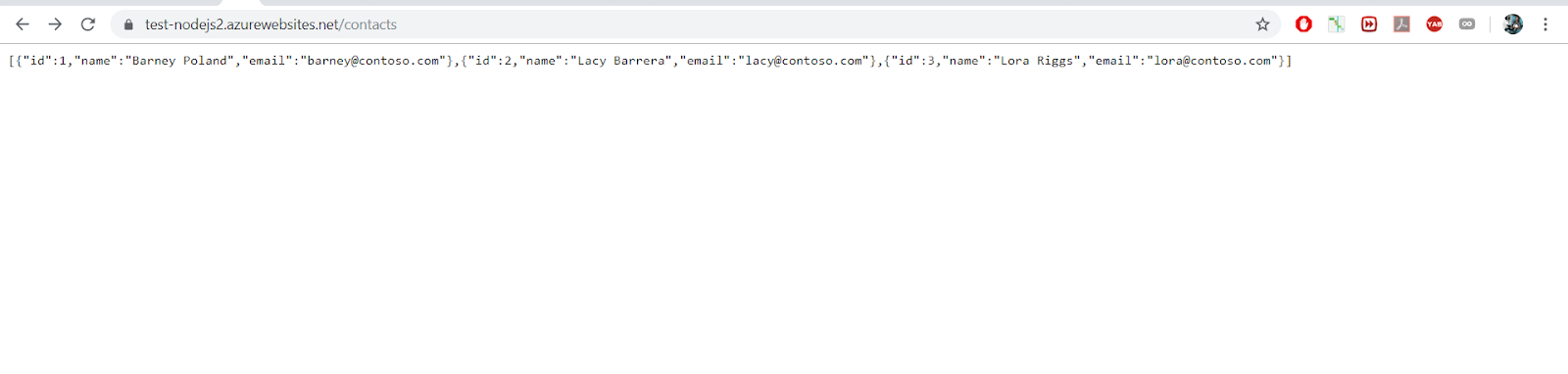
If you click on the "See contacts" button, you will see the Azure Web App serving the JSON of your Restful your API.


If you clcik on the "Use Swagger" button, you will be able to test your API with swagger UI:


Editing online a Node.js API deployed into the Azure App Service

One of the good point of Node.js compared to compiled language like .Net C# is that you can all edit online once deployed.
Assume we want to add a new contact to our API. We just have to write it on the proper file and it is possible with Kudu, so open the file contacts.json located in the lib folder


Add a new contact and don't forget to save the file.


Now, if you test in Swagger you see that your change wasn't taken into account.


Why ? Because your data are in cache and you have to restart the web App for them to be taken into account. One good way to this on Windows server is to do an IISReset. Let's try to do this.


Of course, not a surprise, you cannot restart a Web App that way on the platform "Try Azure App Service". But I will show you a trick to do it anyway:
Locate the web.config file at the root of your site an open it.


Change something not really relevant for the file, like removing an empty line.


Don't forget to save your change, then, test again by refreshing your Swagger UI page. You notice that the page refresh is a little bit longer than usual. It is normal, a change in the web.config file makes restart the Web App and when refreshing, it is a little bit longer, because IIS must reload the dll and the cache to run your API. You can then see your changes appear!


More information

1. Postman

You can also test your API in Postman.


2. Mount a complete API with Swaggerize Express

If you want to know how to mount from scratch the API we have deployed in this post, I wrote a detailled post showing how to do it.

Enjoy folks!

Tuesday, October 10, 2017

Deploy manually a Node.js RESTful API from Github to an Azure Web App (Kudu fetch)

Updated 2019 sept. 2nd

Introduction

This post is a rework of an old Microsoft documentation Build a Node.js RESTful API and deploy it to an API app in Azure linked to this git hub sample Azure-Samples/app-service-api-node-contact-list. The documentation has been removed by Microsoft and the link points now to a tutorial showing how to deploy a RESTFull API based on .Net Core and using swagger and CORS. The link to the Microsoft github sample is still available, but we are not going to use this code, I had simplified it and posted the new code in a personal and public repo. We will use this repo.
In this post, I focused on the detailed and complete steps with a lot of screen shots, so that the reader (even a newbie) can obtain a Node.js api running in Azure within a few minutes and with only manual operations! This quickstart shows how to :
  • create an Azure App Service to host your API
  • import locally a REST API, written with Node.js Express, using a Swagger definition
  • deploy it on Azure.

Configuring your environment

  • Create your Azure free account. Microsoft will ask for a credit card information for that...
    If you don't have an Azure Free account and don't want to use a credit card, I have posted an article to test Node.js deployment into an Azure App Service using the super cool "Try Azure App Service" Feature. It's here...
    This feature doesn't offer all the possibilities of an Azure Free Account, but it could be a good start for discovering Azure Web Apps and Node.js deployment in Azure Web Apps.
    If you already have an Azure account or want a more professionnal environment for testing, just continue this post, if not switch to the other one.


Creating an Azure App Service to host the REST API

We are going to host our Node.js REST API into an Azure App Service, because this is the service to use in Azure to host APIs and Web Applications.
So, let's connect to Azure portal

A little bit of history

From 2015, all the repositories for Web App, Mobile App backend, Web API have been gathered in an Azure offering called App Service in order all enjoy the same capabilities (behavior, insights, features,etc.). That means also they were quite the same and you were able to use a Web API App Service for a mobile backend and vice versa or a Web App App Service for hosting a Web API.

Since 2018 Mobile App (back-end API) seems to have been deprecated while the creation is still available in the portal.
It seems, looking at the 2019 Microsoft documentation for App Service than we have now rather the choice between a Web App and an API app. However, in the portal, for App Service creation and this other Microsoft doc, it seems to have actually no more disctintion, everything has become a Web App. Logic App and Azure Functions seem to have been removed from the App Service offer (while they are still mentioned in the Microsoft App Service documentation as serverless Apps, but not very visible...). So let's create an App Service that will be a Web App since we have now, no more other choice left, using the left menu item in Azure Portal. For sumarizing, in 2019 App Service = Web App and hots everything: Web Applications (Web Sites), API and mobile back-end. Furthermore, New Web App is independant of the environement (Windows, Linux) and the techno, (.Net, PHP, Python, Node.js, etc.), and can host container (Docker).

You can retrieve the old classification (Web App, API App, Mobile App) using the "+" symbol and typing in the search area, but it is not the good way to create an App Service anymore, so we won't use the 2 following screenshots. I show them just as a curiosity.


Creating an Azure App Service

Click on App Service in the left menu (1)
Then on Add on the top menu (2)


You land on the "Web App create" page and you have to chose or type:
  1. the subscription
  2. the resource group
  3. the name
  4. the runtime stack (aka the environment)
  5. the region (place of the Microsoft datacenter)


For the Service Plan, click on create New and type a name


then click on "change size" an on the opening pane, select "Dev/Test" and "Shared Infrastructure" because it is a tutorial and we take benefits of the free offer.
(don't forget you gave your credit card refenreces and avoid bad surprises few weeks later...). Click on "Apply".


You are led back to the review and create page. Click on "Review and Create".


Click on "Create".


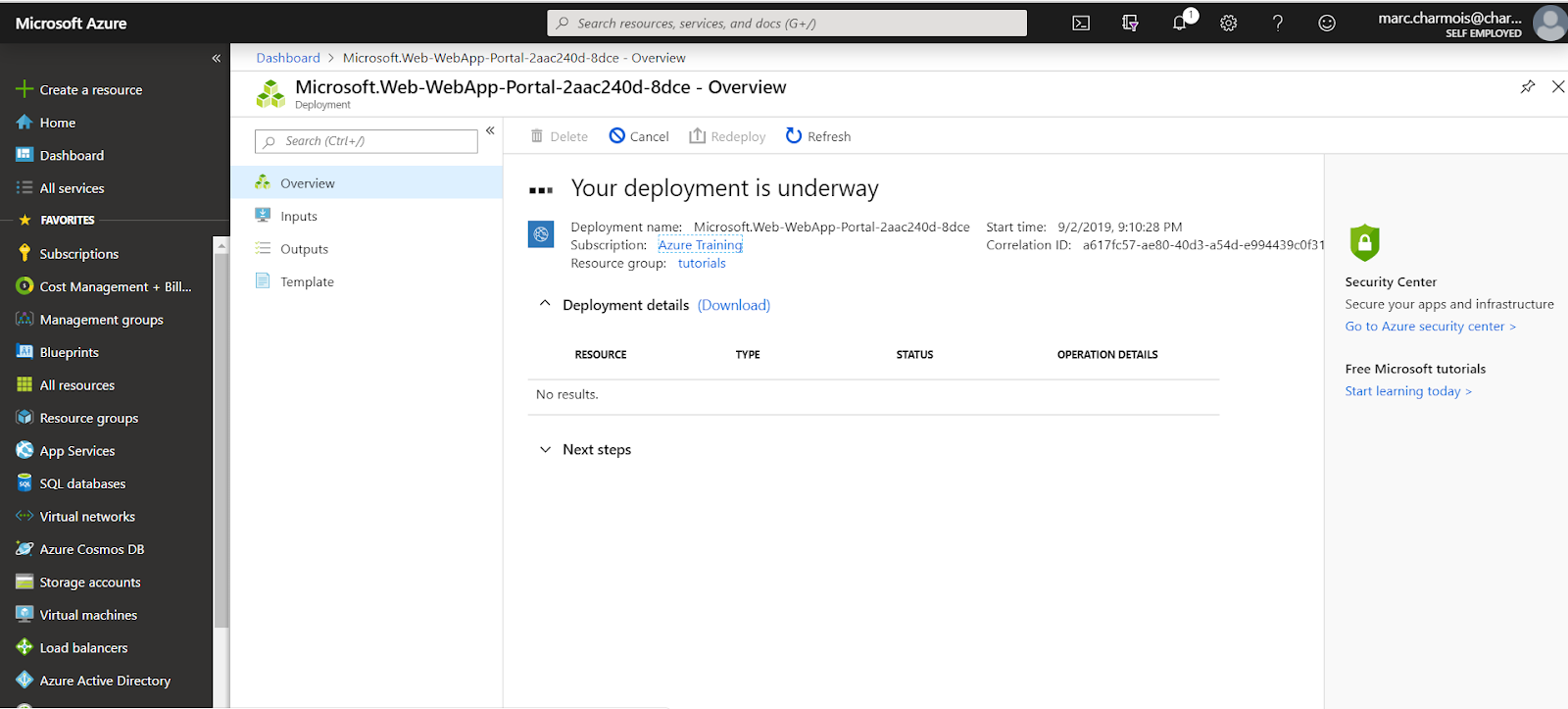
The Web App creation is starting...


You can see progressing steps...


and finally, it is complete.


If you click on "Go to resource", you are led back to the Web App "Overview" page.


And you also can see the new Web App among the other ones in the "App Services" page.


Our Web App is created, we have now to deploy our Node JS API to it.

Node JS API deployment

We are now going to test a very cool feture of the new App Service: deploying code from a Github public repo:
Click on "Deployment center", scroll down and locate "External". Click on it.


Chose the App Service build service (Kudu), and click on "Continue"


Fill the required field. This is the path to my Node.js API public repo:
https://github.com/MarcCharmois/app-service-api-node-contact-list
The branch is master
Select "Public", the field for the Credentials will disapear. Click on "Continue".


Click on "Finish"


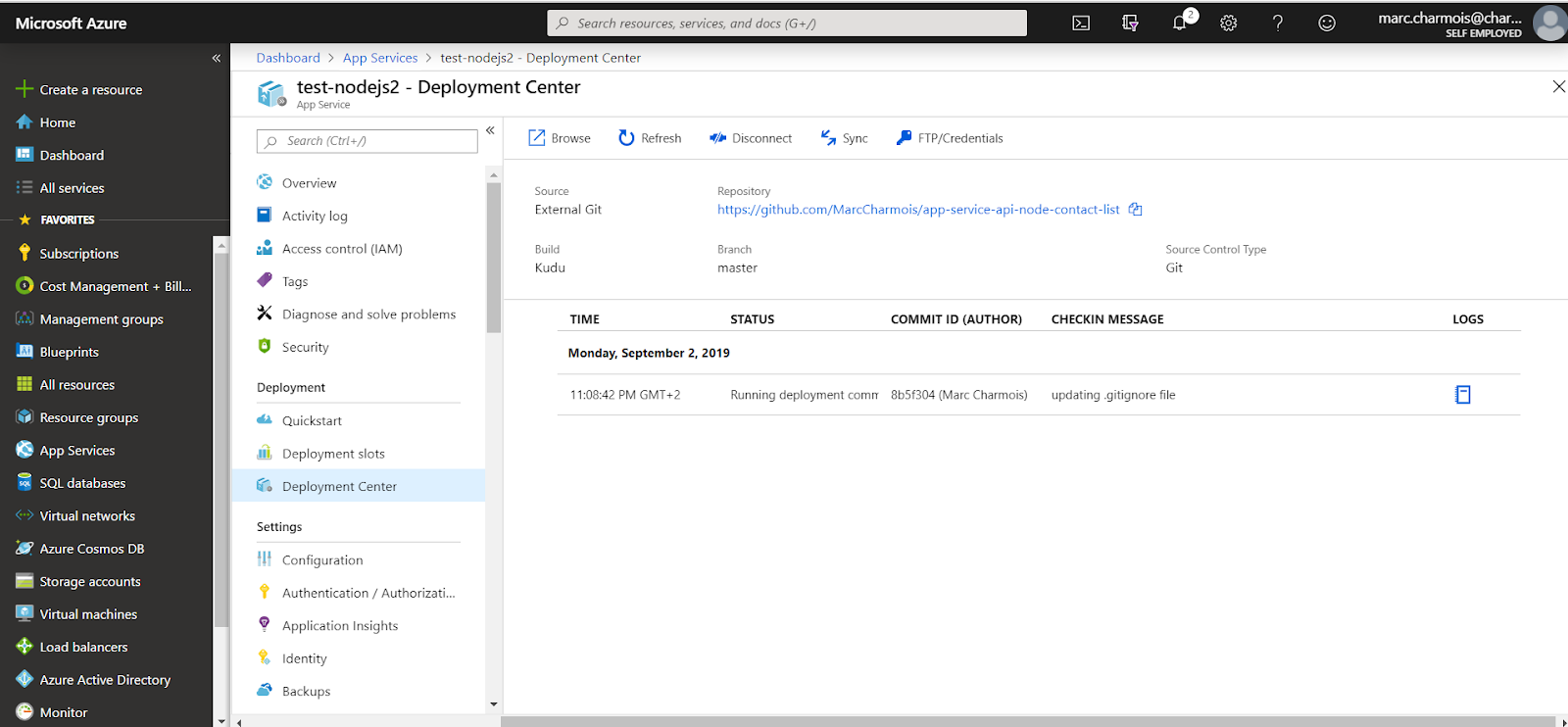
The deployment is starting...


...then complete. You can see the last commit message I have done in GitHub. The Web App (especially Kudu) can realy behave as a source code management. We have done a git fetch from the Azure Web App pointing to a github public repo!


Now our code is deployed, time is to testing it!

Testing the deployment

Go back to the Overview page of your Web App. Click on the Web App Url :


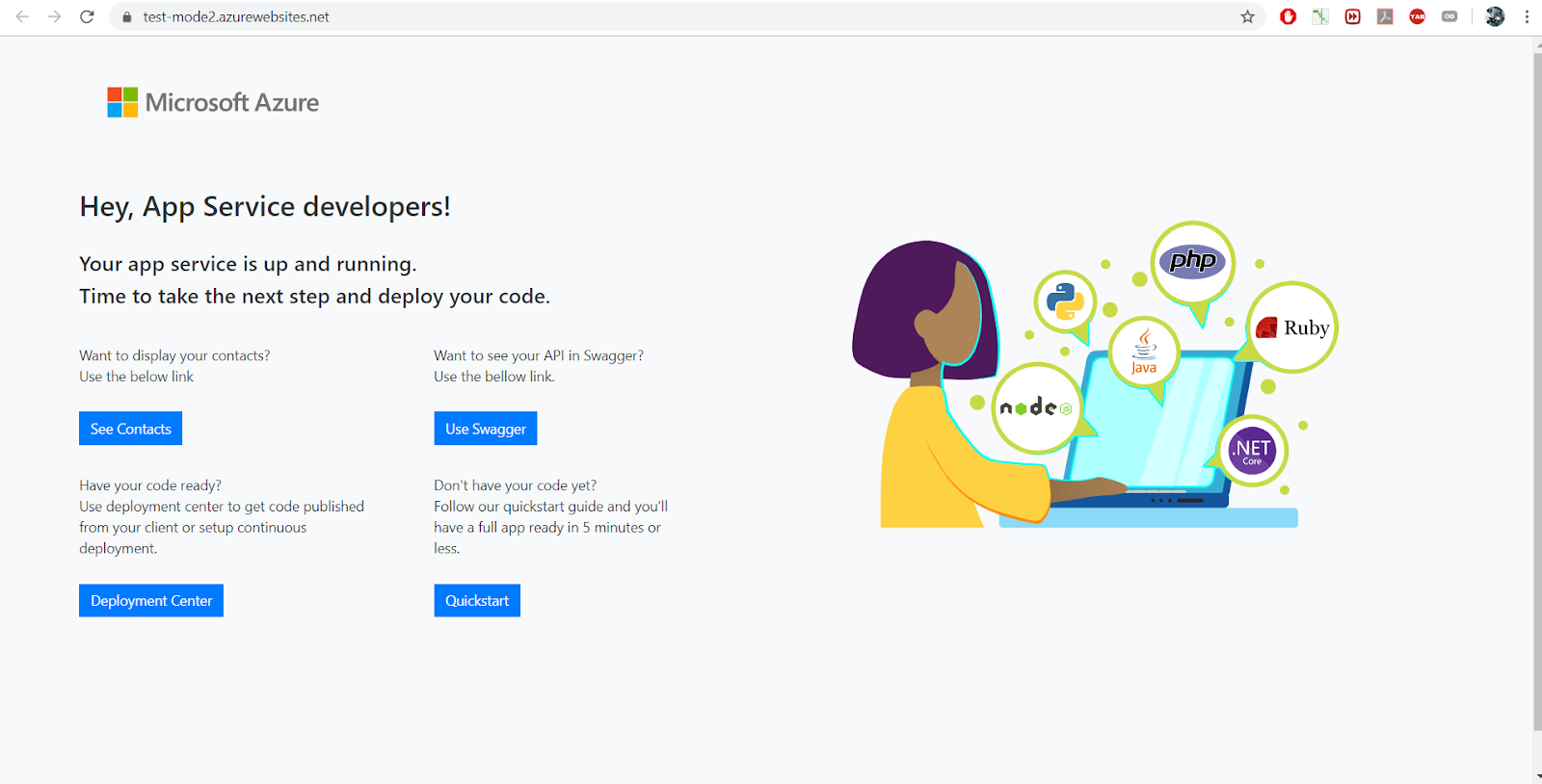
The API "/" root is displaying. I customized the Welcome page of the Web App of "Try Azure App Service" and added some links regarding our API.


But if you click on the "See Contacts" button you see your API sending the contacts in JSON format


So it works! Notice that, we have never done any environment configuration operations to tell the Web App of the Azure App Service that we were planning to deploy a Node.js API to it.
What is fantastic regarding a Web App of Azure App Service, is, it is "smart enough" to "understand" that we were deploying a Node.js API and that it could adapt itself to make the API run. By the way you can see in my source code files a iisnode.yml file and a web.config file. I add them to be able to deploy an API manually in this other post. But assume these 2 files are not in my GitHub repo, if we make the same deployment that we just did without these 2 files, you would have seen these 2 files anyway. The Kudu build engine would have created them to make the API work!


Using Swagger UI

If you want to have a more complete testing experience using swagger, click on the "Use Swagger" button on the Welcome page, or type this Url:

https://<your app service url>/docs
in my case:
https://test-nodejs2.azurewebsites.net/docs

The Swagger UI display your API features:


Click on "Contacts" to display the 2 API routes


Test the first route by clicking on it.


and clicking on "Try it out!":


Keep developping online within Azure


Last, you can enjoy the preview of Visual Studio Code online or App Service Editor for keeping developping your API without having to deploy anymore from local environment.


By the way, it is an excellent way to check what was exactly deployed into the Azure App Service.
I was really impressed to see that an API developped 2 years ago can still work so well and be deployed so easily.

Hope that helps :-)

Friday, October 6, 2017

Azure App Service

Updated 2019 sept. 3rd
Topic : An update on Azure App Service offering, available from summer 2018. Here are some explanations, details and useful links

A little bit of history:

2015- Summer 2018
First simplification : Creation of the App Service offering that gathers Web App, API App, Mobile Back-end, Logic App and Function.

Before 2015, for Azure classic portal, there was 2 offerings - Azure Websites and Azure Mobile services.
Since the beginning of 2015 and in Azure new portal, both of them got rolled into something called Azure App Service which also included two more kinds of apps - API Apps and Logic Apps. Recently a new App Service the Function has joined the Microsoft Azure App Service offering


2015 General presentation

App Service is a new offering for Azure wich pull in bunch of services into a single offering called App Service including Web Apps, mobile, API and Logic. It is a new way in Azure to gather different sevices so as they can enjoy the same capabilities. All the new features what we had in Azure Web Sites are available across all for new type of services (mobile, API and Logic). That includes:
  • How they are scaled
  • How they behave
  • Things like application insights
Summer 2018- now (2019)
Second simplification. The App Service offering becomes even more simple :
  • Web App, API App, Mobile back-end, everything become a Web App.
  • Arrival of the Container (sept. 2017 Linux).
  • Logic App and Function become serverless App
Since 2018, looking at the 2019 Microsoft welcome page for App Service, we have now rather the choice between Web Apps, Web App for Containers and API apps (1).


We will see bellow that the API App seems to be technically included in the Web App feature. The API App category seems to have been kept for marketing reasons only.
Logic App and Azure Functions seem to have been removed from the App Service offering, although they are still mentioned in the Microsoft App Service documentation as serverless Apps, but not very visible...(2).
useful links:
Link to Microsoft App Service Portal
Fantastic training courses on Azure from Microsoft including App Services

More details

As written above, for App Service creation in the portal and as mentionned in this other Microsoft doc, it seems to have actually no more disctintion between Web Apps, Api Apps and Web App for Containers, everything has become a Web App. You have to chose at creation between Web App for code or Web App for Container but no choice reagrding Web App or API App. Thus, regarding the global name, create an App Service comes back to create a Web App since we have now, no more other choice left, using the "App Services" left menu item in Azure Portal.


For sumarizing, in 2019 App Service = Web App, and Web App can host everything: Web Applications (Web Sites), API, Mobile Back-end and Container. Furthermore, New Web App can
  • be based on any environement (Windows, Linux),
  • any techno, (.Net, PHP, Python, Node.js, etc.),
Logic App and Azure Functions seem to have been removed from the App Service offering, although they are still mentioned in the Microsoft App Service documentation as serverless Apps, but not very visible...(see 2 at first screenshot).
And even if, when creating a Function, it still appears in the App Service section of the portal.

Regarding the Mobile App

Mobile App (back-end API) is deprecated although the creation is still available in the portal, but a message warns you that this feature will be removed on 2019 November 11.


The name Mobile App still remains but refers now to a global offering to:
  • create Applications on mobile device +
  • create the back-end in Azure for the mobile application (that is an App Service) +
  • solutions for the other concerns (storage, authentication, push notifications)
This was the key benefits of the App Service Mobile App feature in 2015. There are still relevant but has to be seen as a global offering and no more as an App Service.
Accelerate your mobile app development with this turnkey way to structure storage, authenticate users, and send push notifications.
With native and cross-platform SDKs for iOS, Android, Windows, and HTML, as well as a powerful and flexible REST API, Mobile Apps empowers you to build
connected applications for any platform and deliver a consistent experience across devices.

Integrate with SQL, Oracle, SAP, MongoDB, and more.
Make your app work offline and sync.
Connect to on-premises data.
Leverage enterprise single sign-on with Active Directory.
Integrate with social providers like Facebook, Twitter, and Google.
Broadcast push notifications across platforms, with customer segmentation.
Gain insights with mobile analytics.
Auto-scale to millions of devices.
source : Azure Portal Description when attempting to create

Here is an old video about Mobile App from 2015:
Microsoft Azure Mobile App Service Presentation - Azure Friday, (03-19-2015)
Useful links for Mobile App global offering:
Link to Azure Mobile Apps documentation
Link to Azure Friday Video - Azure App Service Mobile Apps with Kirill Gavrylyuk
Link to Mobile App Microsoft Portal
The Microsoft documentation for Node.js backend with Mongo DB has changed

"Try Azure App Service"

Want to play with Azure Portal and Azure App Services for free (no credit card information needed by Microsoft, just a social account for signing)? Go there:


By the way, you can notice that, in "Try Azure App Service", you can only chose between Web App and Web App for Containers and that, thus, Web App and API App has become the same thing.
From summer 2018, the only resource running an application (Web site, API, Mobile Backend, Container) in Azure App Services, is the Web App .
You can also notice that serverless Apps (Logic App, Function) has been removed from the App Service offering.

The new types of App Service : Web Apps (API Apps), Web App for Containers, (Serverless App)

Web App


Azure App Service is an HTTP-based service for hosting web applications, REST APIs, and mobile back ends. You can develop in your favorite language, be it .NET, .NET Core, Java, Ruby, Node.js, PHP, or Python. Applications run and scale with ease on both Windows and Linux-based environments
source: Microsoft App Service overview
Create and deploy mission-critical web applications that scale with your business
  • Supports Windows and Linux platforms
  • Built-in autoscale and load balancing
  • High availability with auto-patching
  • Continuous deployment with Git, Team Foundation Server, GitHub and DevOps
  • Supports WordPress, Umbraco, Joomla! and Drupal
  • Jumpstart your app building
    Get your web apps into users’ hands faster using .NET, Java, Node.js, PHP and Python on Windows or .NET Core, Node.js, PHP or Ruby on Linux. Use a fully-managed platform to perform OS patching, capacity provisioning, servers and load balancing. Configure from CLI or the Azure portal or use prebuilt templates to achieve one-click deployment.
  • Increase developer productivity
    Start fast and finish faster with source code integration from GitHub, live debugging and one-click publish directly from Microsoft Visual Studio IDE. Easily connect to your database of choice and tap into an ecosystem of OSS packages, APIs, connectors and services through the Azure Marketplace, expediting development. Quickly add custom domains and SSL, single sign-on (SSO) integration with popular identity providers and application health monitoring to your apps with the Azure portal.
  • Ship updates faster
    Automate deployments with continuous integration/continuous deployment (CI/CD) capabilities using DevOps, Bit Bucket and GitHub. App Service creates an association with the selected repository, so your apps are updated each time your source code changes. Schedule performance and quality tests with staging environments, use deployment slots to swap staging to production in seconds and roll back to previous versions without downtime.
  • Achieve global scale on demand
    Get high availability within and across Azure regions as you deploy data and host services across multiple locations with one mouse click. Automatically scale vertically and horizontally based on application performance or customisable rules to handle peaks in workload automatically while minimising costs during off-peak times. Meet the most rigorous app performance and scalability requirements with the newly introduced D-Series compute option.
  • Get actionable insights and analytics
    View application performance and health end to end, so you can make the decisions that improve your business. Azure Monitor provides detailed views of resource usage, while Application Insights provides deeper insights into your app’s throughput, response times, memory and CPU utilisation and error trends.
  • Take advantage of hybrid consistency
    Get a flexible and unified approach to building and managing apps that can run across both the cloud and on-premises. Deploy your apps to App Service in your cloud of choice—Azure, Azure national clouds or even on-premises with Azure Stack. Securely run your apps in your Azure Virtual Network at large scale with enhanced privacy, power and performance using an App Service Environment.
  • Choose enterprise-grade services
    Host your apps on a highly-secure cloud platform that complies with ISO information security standards, SOC2 accounting standards and PCI security standards and count on App Service to deliver on enterprise-level SLA. Use Azure Active Directory (AD), as well as other popular identity providers, to authenticate and authorise app access. Azure AD provides identity management and secured single sign-on (SSO) integration with thousands of cloud SaaS applications such as Office 365, Salesforce, Dropbox and Concur.


Web App for Containers


I have tested these Web Apps. First thing to know:
  • It is free for a Linux stack but you have to pay for a Windows one
  • It is not available for all regions
  • When created, the icon in the portal is exactly the same than for the other Web Apps (only API App kept a different icon)
When familiarized with Docker that doesn't take much time, it is amazingly easy to deploy a container in these Web App through the portal. You can practice with this tutorial: Build locally a docker image and deploy it to an Azure Web App for containers


API App


Warning:
As written several time before, it seems that this category has been kept only for marketing reason. It seems that there is only Web App category left from now in the Portal. App Service = Web App.
Anyway I post here a way to create Api Apps. I tried and didn't receive a message saying they are deprecated (as I received for Mobile Apps)

Microsoft information:
Create and deploy RESTful APIs in seconds, as powerful as you need them
Leverage your existing tools to create and deploy RESTful APIs without the hassle of managing infrastructure. Microsoft Azure App Service API Apps offers secure and flexible development, deployment, and scaling options for any sized RESTful API application. Use frameworks and templates to create RESTful APIs in seconds. Choose from source control options like TFS, GitHub, and BitBucket. Use any tool or OS to develop your RESTful API with .NET, Java, PHP, Node.js or Python.

  • Fastest way to build for the cloud
  • Provision and deploy fast
  • Simple access control and authentication
  • Secure platform that scales automatically
  • Great experience for Visual Studio developers with automatic SDK generation
  • Open and flexible for everyone
  • Monitor, alert, and auto scale (preview)
source : Azure Portal Description when attempting to create

Useful links:
Link to Microsoft Azure API App Service Portal
Link to the old API App Service Video (11-18-2015) not updated

Creation of an API App

The only way to create Api Apps today (september 2019) is to use the + Create a resource and make a search. The API App has been hidden from the web category. Thus they have not been deprecated but might be soon I think.


Then, click on the API APP button to access to the creation blade. No deprecation message for the moment.


you can plug your App on an existing (free) service plan, useful!


You can notice that the API Apps kept their icons.


I checked a little bit and for the moment, no difference with a Web App found, excepted the icon.

I didn't update this last part because serverless apps seems to be outside of the real App Service scope from mid 2018.
Even if, when creating a Function, it appears in the App Service section of the portal.

Serveless App

Logic App


Logic Apps allow developers to design workflows that articulate intent via a trigger and series of steps, each invoking an App Service API app whilst securely taking care of authentication and best practices like durable execution.
Easy to use design tools - Logic Apps can be designed end-to-end in the browser. Start with a trigger - from a simple schedule to whenever a tweet appears about your company. Then orchestrate any number of actions using the rich gallery of connectors.

Compose SaaS easily - Even composition tasks that are easy to describe are difficult to implement in code. Logic Apps make it a cinch to connect disparate systems. Want to create a task in CRM based on activity on your Facebook or Twitter accounts? Want to connect your cloud marketing solution to your on-premises billing system? Logic apps are the fastest, most reliable way to deliver solutions to these problems.

Extensibility baked in - Don't see the connector you need? Logic Apps are part of the App Service suite and designed to work with API apps; you can easily create your own API app to use as a connector. Build a new app just for you, or share and monetize in the marketplace.

Real integration horsepower - Start easy and grow as you need. Logic Apps can easily leverage the power of BizTalk, Microsoft's industry leading integration solution to enable integration professionals to build the solutions they need.

source : Azure Portal Description when attempting to create

Creation:

On Azure Portal Click on App Service, then on Add:


Then, scroll down to display the Logic App Section, and on the "More" link to display all the options regarding Logic Apps:


Function


Write any function in minutes – whether to run a simple job that cleans up a database or build a more complex architecture. Creating functions is easier than ever before, whatever your chosen OS, platform, or development method.
source : Azure Portal Description when attempting to create