

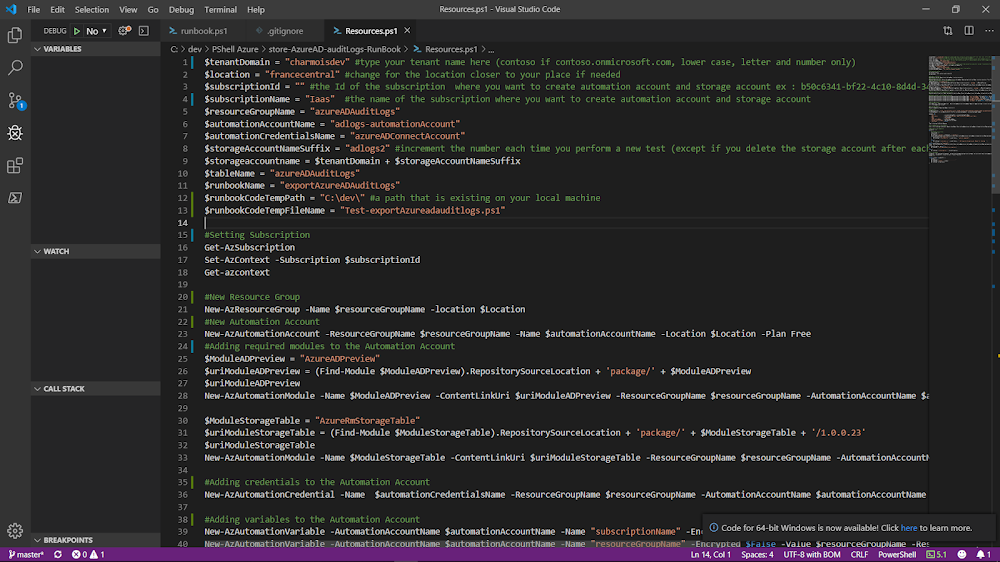
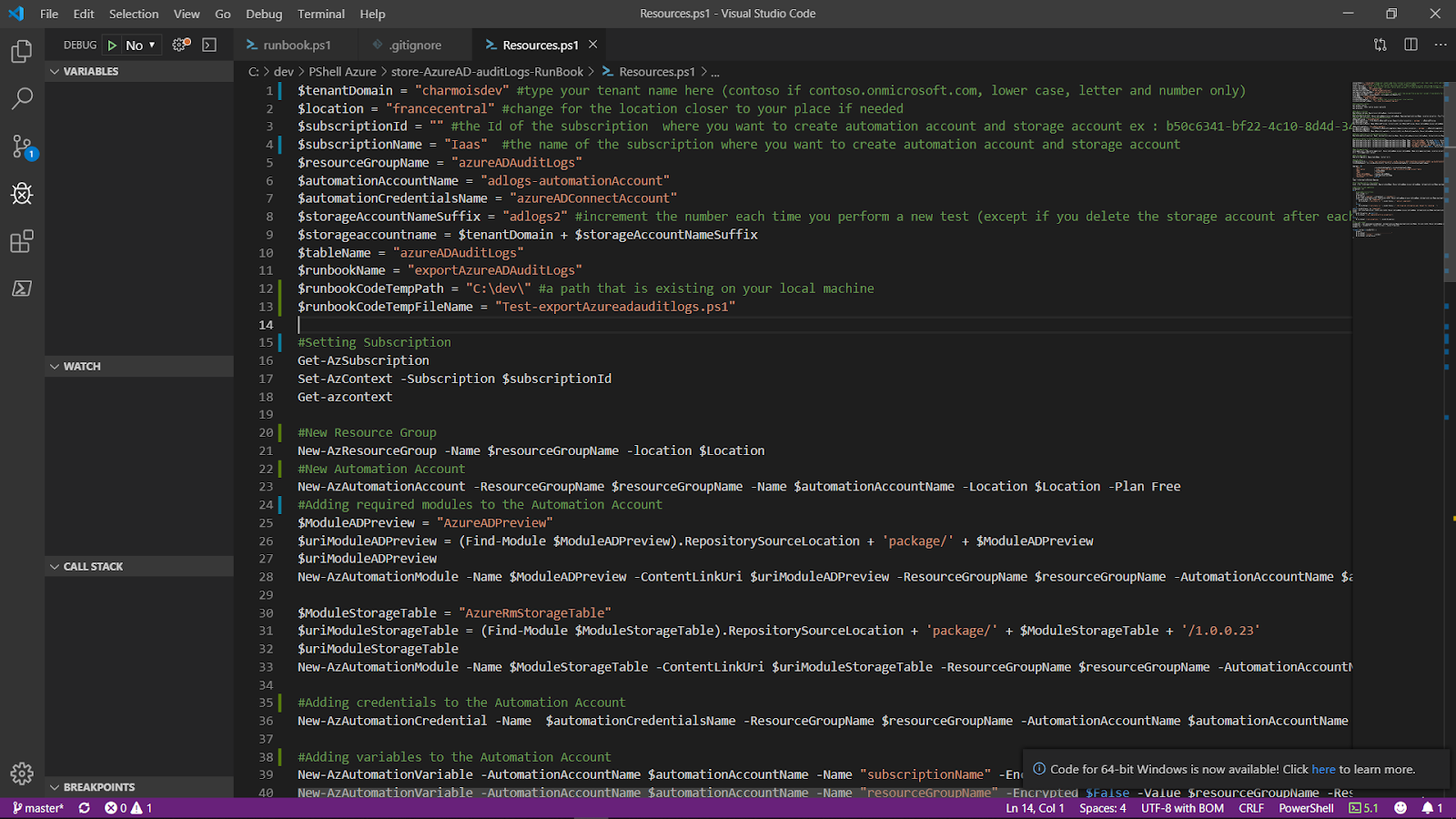
This how-to shows how to change the syntax hilighting in Visual Studio code. This is the basic VS code PowerShell highlighting. I would have liked at least, a different color for the variables.
I wanted to use colorisers for the PowerShell variables. After few searches, I found the trick:
Open the settings of VS Code:
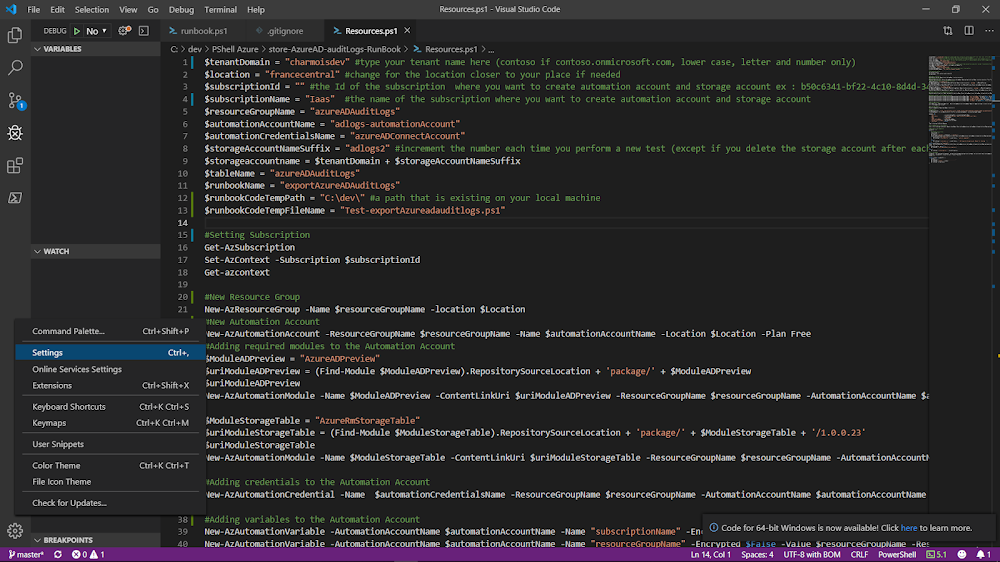
In Settings Editor, switch from "ui" to "json"

This is the native parameters you should have after opening the settings of VS Code in json mode:
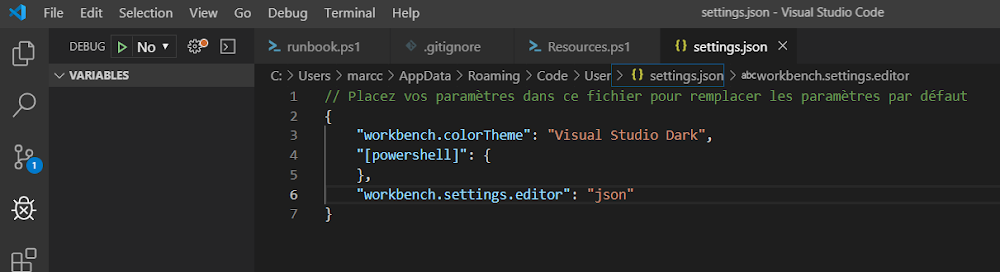
This is the trick for changing the variable, the keywords (if, else, do, while, etc.) and the function (PowerShell cmdlets) color. Paste this without forgetting the coma to the existing text before pasting. You will put the color you like and will notice a tool for choosing the color you want. Awesome!

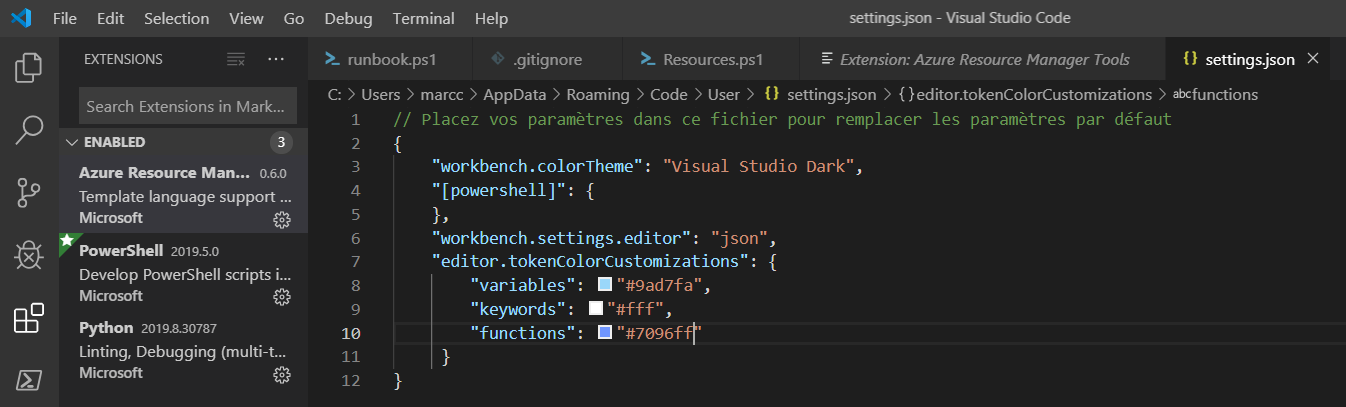
This is the screenshot of my final config:

As soon as you save your settings.json file you can switch to an already open PowerShell source code file and enjoy the new syntax highlighting.

Enjoy!
I wanted to use colorisers for the PowerShell variables. After few searches, I found the trick:
Open the settings of VS Code:

In Settings Editor, switch from "ui" to "json"

This is the native parameters you should have after opening the settings of VS Code in json mode:

This is the trick for changing the variable, the keywords (if, else, do, while, etc.) and the function (PowerShell cmdlets) color. Paste this without forgetting the coma to the existing text before pasting. You will put the color you like and will notice a tool for choosing the color you want. Awesome!
    "editor.tokenColorCustomizations": {
        "variables": "#9ad7fa",
        "keywords": "#fff",
        "functions": "#7096ff"
     }

This is the screenshot of my final config:
As soon as you save your settings.json file you can switch to an already open PowerShell source code file and enjoy the new syntax highlighting.

Enjoy!


