Showing posts with label Azure Active Directory PowerShell for Graph. Show all posts

Monday, August 26, 2019

Get Azure AD audit and sign-in Logs using PowerShell and AzureADPreview module

I ran randomly through a Microsoft documentation exposing PowerShell cmdlets to get quickly Azure AD logs.
As I had AzureAD module already installed on my computer, I tried to use them but they were not recongnized.
I understood that they, actually, were a part of another Azure AD PowerShell module: AzureADPreview.
It could be useful to use the module AzureADPreview to get quicly Azure AD Audit logs but you cannot run it if you have already the module AzureAD installed.
I had to uninstall the AzureAD module to have the AzureADPreview comdlets working as told in this forum.
Furthermore, it is, of course, not recommended by Microsoft to use the preview module for production matters.

Anyway, this is the steps to check in order to make the preview module work:

1. check there is only the AzureADPreview module installed and available

Use the
Get-module -listavailable
cmdlet to check that there is only the preview module available.

2. connect to Azure AD

use the cmdlet
connect-AzureAD
If you have AzureAD module installed, the AzureAD module will be loaded and will perform the connection, thus you won't be able to use the AzureADPreview cmdlets later.
That's why AzureAD module has to be uninstalled.
You can see on my screenshot that neither AzureAD module nor AzureADPreview module have been loaded before the connection.

3. Check that the module AzureADPreview has been loaded

To be sure that the Azure AD connection has been done by the AzureADPreview module, use the cmdlet:
Get-Module


You can notice than AzureADPreview Module has been loaded and thus, that is actually that module that has connected the PowerShell session to Azure AD.

3. Get Azure AD Audit logs with a PowerShell cmdlet

use the cmdlet Get-AzureADAuditDirectoryLogs to get the Azure AD logs:
get-azureadauditdirectorylogs


To get the Azure AD sign-ins logs you can use this cmdlet:
Get-AzureADAuditSignInLogs
However, you must have a premium subscritpion to Azure AD to be allowed to consult the sign-ins log.

Friday, August 23, 2019

Create a user in Azure Active Directory using PowerShell (Windows 10)

I recently tried to create an user in Azure Active Directory using the Windows 10 PowerShell application and run through several issues, so I published this post to help people running through the same troubles.

Microsoft documentation reference :

  • Tutorial: Grant a user access to Azure resources using RBAC and Azure PowerShell
    The above link gives you an example of using PowerShell to create a user in Azure Active Diretory but it uses the Azure Cloud Shell. If you want to create a PowerShell script that you want to reuse from time to time to create users in Azure AD in a large company, using Azure Cloud Shell is not the best solution.
  • New-AzureADUser
    The above link gives you an example of using PowerShell to create a user in Azure Active Diretory but not explain the trick to configure your PowerShell environment properly to make it work.

Tutorial

(tricks to create a user in Azure Active Directory using Windows 10 PowerShell Application)

1. Prerequisites

For doing this tutorial you need to have:
  • An Azure tenant
  • Permissions to create users in the Azure Active Directory of this tenant.
  • Azure PowerShell Az module installed

2. Installation of AzureAD PowerShell Module

Open the Windows 10 PowerShell Application.
Type PowerShell in the Windows 10 pane and right click the Windows 10 PowerShell Application icon and open it "as Administrator"


In the PowerShell command type:
Install-Module AzureAD
to install the PowerShell Azure AD Module.


You can then check that the AzureAD Powershell Module has been installed successfully by typing the following command:
Get-InstalledModule


and most of all that the module can be actually used:
Get-Module -Listavailable


then go to the directory where the module was installed to be able to copy the path and the name of the dll we need later.
It should be:
C:\Program Files\WindowsPowerShell\Modules\AzureAD\2.0.2.31\Microsoft.Open.AzureAD16.Graph.Client.dll


3. Loading the Microsoft.Open.AzureAD16.Graph.Client.dll within PowerShell Application.

Now, we have to load the dll within PowerShell. If we don't we will get an issue in PowerShell while trying to create the variable for the password of the user:
New-Object : Cannot find type [Microsoft.Open.AzureAD.Model.PasswordProfile]: make sure 
the assembly containing this type is loaded.
So let's load the dll in PowerShell by typing the following instruction with the path copied previously:
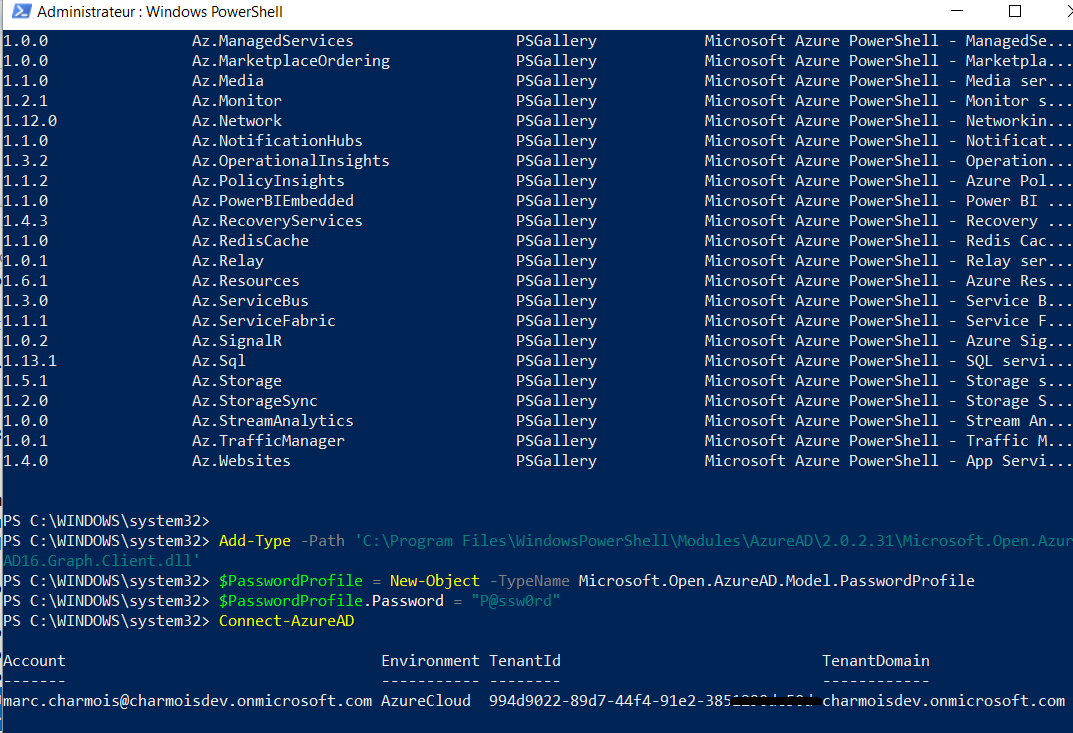
Add-Type -Path 'C:\Program Files\WindowsPowerShell\Modules\AzureAD\2.0.2.31\Microsoft.Open.AzureAD16.Graph.Client.dll'

4. Creating the user in Azure AD

Then let's create the password variable. You can use P@ssw0rd that is compliant to the required rules for an Azure AD password:
$PasswordProfile = New-Object -TypeName Microsoft.Open.AzureAD.Model.PasswordProfile
$PasswordProfile.Password = "P@ssw0rd"
Then we have to connect to Azure AD in order to really create the user. Type:
Connect-AzureAD
A dialog is opening for you to type your Azure Account Login


then your Azure Account password


You should have the following screen after the connection:


Then type the following line by replacing the tenant domain of the User Principal Name by your tenant domain (mine is charmoisdev.onmicrosoft.com):
New-AzureADUser -DisplayName "RBAC Tutorial User2" -PasswordProfile $PasswordProfile `
-UserPrincipalName "rbacuser2@charmoisdev.onmicrosoft.com" -AccountEnabled $true -MailNickName "rbacuser2"
You sould have the following screen after user creation:


You can then check in the Azure Portal that your user has been created successfully: